
"This add-in could not be started" in Word
Last updated: 7 September 2026
If DraftPilot has stopped opening in Word and you see this in the task pane:
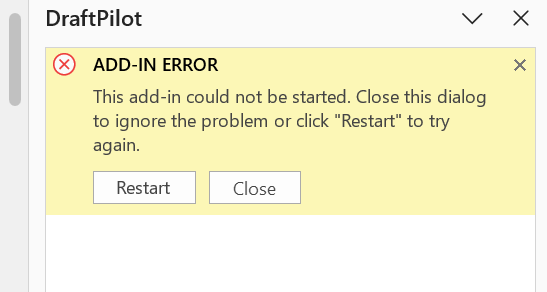
ADD-IN ERROR This add-in could not be started. Close this dialog to ignore the problem or click “Restart” to try again.
Clicking Restart usually makes no difference. In most cases Word is fine and your DraftPilot account is fine: something on your network is blocking the address the add-in loads from.
This is a common one when the add-in worked for months and then stopped without anything changing on your machine. A new web-filtering policy on your corporate network is the usual culprit.
Step 1: check the add-in address in a browser
On the same computer, open a browser and go to https://app.draftpilot.ai.
-
If you see the DraftPilot sign-in page, your network is not the problem. Skip to Other causes below.
-
If you see a block page, that is your answer. It often looks like this:
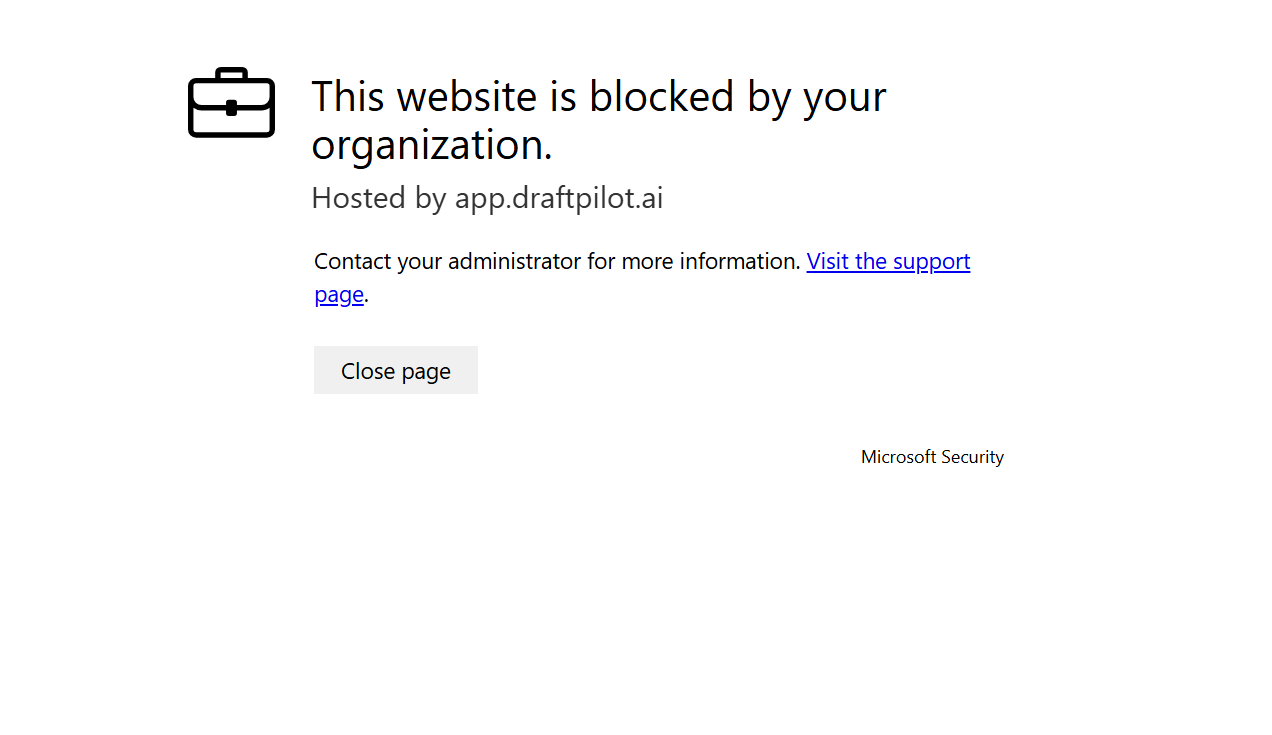
This website is blocked by your organization. Hosted by app.draftpilot.ai
Wording varies by product. Microsoft Defender, Zscaler, Netskope, Cisco Umbrella and most corporate firewalls each show their own version of it. Anything that says the site is blocked, restricted, or not permitted counts.
Step 2: send the domains to your IT team
If you saw a block page, your IT or security team needs to allow these hosts over HTTPS (port 443):
-
app.draftpilot.ai(the task pane itself) -
api.draftpilot.ai(reviews, chat and playbooks) -
api-us.draftpilot.ai(US deployments) -
appsforoffice.microsoft.com(Microsoft’s Office.js runtime, which Word needs to start any add-in)
Two things worth mentioning to them, because they are easy to miss:
-
Allowing the domain in the browser is not always enough. Some products apply a separate policy to Office applications, so Word can still be blocked after browsing works.
-
SSL inspection needs to be disabled for these hosts, or our certificates allowed through it.
Full details, including IP addresses, are in Network requirements: allowlisting DraftPilot for your firewall or web proxy. Feel free to forward that page straight to your IT team.
Once the change is in place, fully close and reopen Word. The add-in should load normally.
Other causes
If app.draftpilot.ai loads fine in your browser but the error persists, the usual suspects are:
-
Word’s privacy settings. Connected experiences must be enabled or Word blocks all add-ins. See DraftPilot not loading? for where to find them.
-
A read-only, protected or
.docformat document. Same article covers these. -
An out-of-date Word. See How to upgrade Microsoft Word 365.
Still stuck?
Email [email protected] and tell us:
-
what you see when you visit
https://app.draftpilot.aiin a browser (a screenshot is ideal), -
whether other people in your organisation have the same problem, and
-
roughly when it last worked.
That is normally enough for us to tell you which side the block is on.