
How to set up SCIM provisioning
Last updated: 25 February 2026
To set up SCIM provisioning do the following:
- Get the SCIM token from the Organization page: https://app.draftpilot.ai/organization-settings
(If you don’t have access to this page, please contact us at [email protected] and we will give you access)
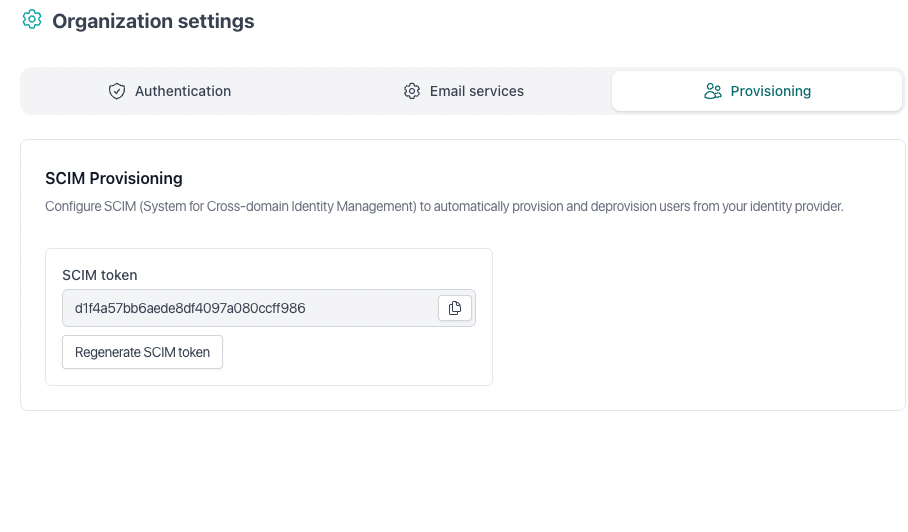
- Create an Enterprise Application in Azure AD
Go to portal.azure.com and then > Azure Active Directory
Click “Enterprise applications”
Click “New application”
Click “Create your own application”
Name it (e.g., “DraftPilot provisioning”)
Select “Integrate any other application you don’t find in the gallery”
- Configure provisioning:
In the new Enterprise application, go to “Provisioning”
Then click New configuration
Change “Provisioning Mode” to “Automatic”
Under “Admin Credentials”, enter:
Tenant URL: https://api.draftpilot.ai/v1/scim
Secret Token: [SECRET TOKEN PROVIDED BY DRAFTPILOT IN THE FIRST STEP]
Click Test connection to see if it works, and then “Create”
- Test provisioning
We always suggest you test it, you can add a user to this Azure AD group.
Click Provision on demand
Go to https://app.draftpilot.ai/users to ensure the new account has been created